🎛️ Section 11: Input Helper + Dashboard UI
📝 Summary (What you will do)
In this section, you will build reusable terminal UI helpers. You will:
- Create an input helper that validates user choices
- Build a dashboard function that prints the player’s status
- Display each pet using the
short_stats()method
This gives the game a clean, readable interface.
✅ Checklist (You must complete these)
- Open
pet_manager.py - Find the end of the
Playerclass - Directly below it, add the input helper and dashboard UI
- Type the code by hand so you understand how it works
✅ No new constants/settings are added in this section, so you do not need to edit the top-of-file constants.
🎓 Core Concepts (New learning for this section)
1) Input validation loops
Users will sometimes type the wrong thing.
A while True loop keeps asking until the input is valid.
This prevents crashes and makes the UI feel professional.
2) Functions that take a Player
show_dashboard(player: Player) takes the player object so it can:
- Read the player’s name and level
- Check how many pets they own
- Loop through and show each pet’s stats
This is a common pattern: pass in the object you want to display.
3) Building readable dashboards
The dashboard uses:
- Separator lines (
=and-) - Consistent formatting
- One line per pet
This makes it easy to scan the game state at a glance.
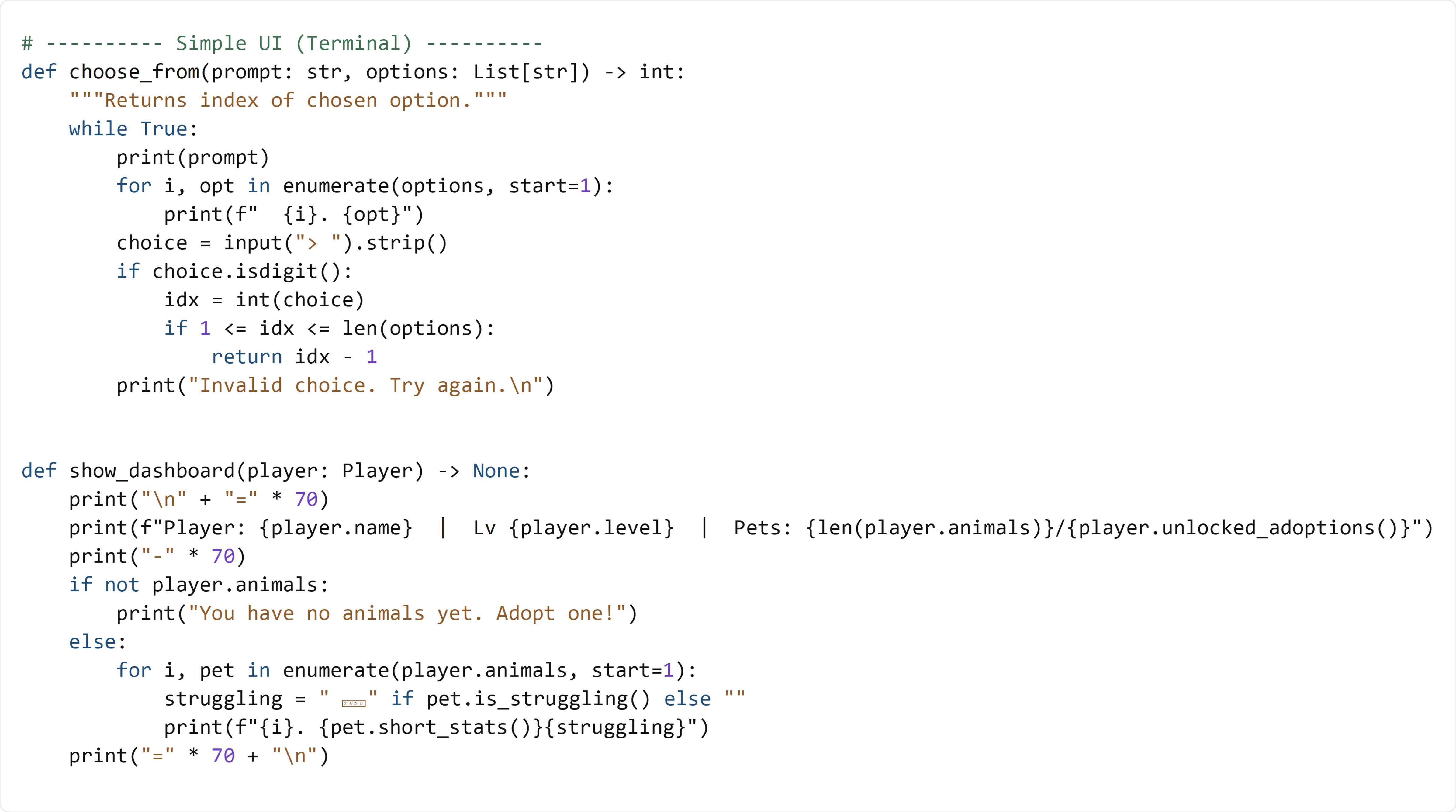
💻 Code to Write (Type this by hand in pet_manager.py)
Directions:
- Open
pet_manager.py - Find the end of the
Playerclass - Directly below it, type the following code by hand:
😀 Emoji Copy/Paste List
Use these emojis exactly as shown in the code:
⚠
🧠 Code Review & Key Concepts (What important lines do)
The input helper
while True:
This keeps the prompt running until valid input is entered.
if choice.isdigit():
This ensures the input is a number before we try to convert it.
The dashboard header
print(f"Player: {player.name} | Lv {player.level} | Pets: {len(player.animals)}/{player.unlocked_adoptions()}")
This line summarizes the player’s name, level, and pet count all at once.
Showing each pet
print(f"{i}. {pet.short_stats()}{struggling}")
Each pet is printed on one line using short_stats(), and a warning icon appears if the pet is struggling.
🧪 Test File: s11_test.py
✅ Create this file
Create a new file in the same folder as pet_manager.py called:
s11_test.py
💻 Code to write in s11_test.py
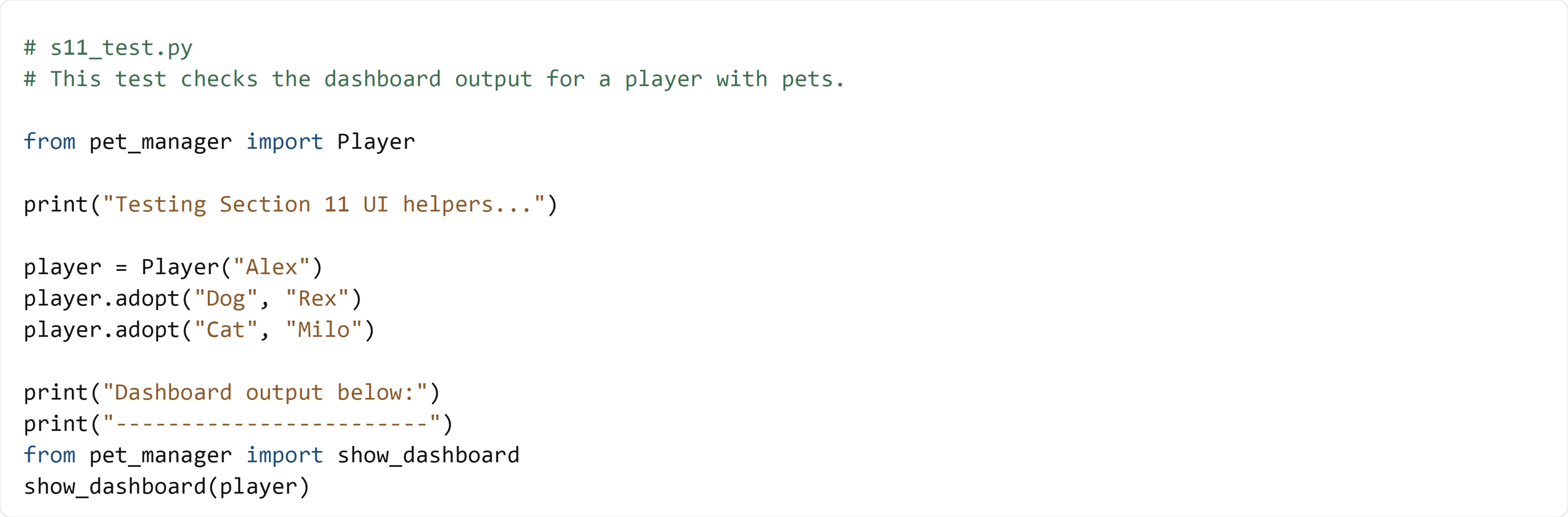
🧠 What this test is doing (and how it works)
- We create a
Playerand adopt two pets - We call
show_dashboard()to print the formatted UI - You should see a header line and each pet on its own line
✅ Run the test:
python s11_test.py
If the dashboard prints cleanly with pet stats, your UI helpers work.